

An IPTV guide lists each live channel's programs with titles, start and end times, and descriptions, and it should line up with what the stream plays. What if the schedule on screen is polished, searchable, and still wrong by an hour, or the right program buffers every evening? That's the gap most IPTV with guide listings don't explain. The guide describes the schedule. The stream decides playback. Testing those two jobs separately tells you far more than counting channels.
Table of Contents
- What an IPTV Guide Shows on Screen
- How Guide Times Stay Accurate Across Time Zones
- Guide Features to Test Before You Subscribe
- Why a Good Guide Still Buffers and How to Diagnose It
- Making the Guide Easy to Use for Seniors and Multilingual Homes
- Frequently Asked Questions About IPTV Guides
- Confirm the Guide Works in Your Home Before You Pay
What an IPTV Guide Shows on Screen
Think of an electronic program guide, or EPG, as a printed TV listings page that updates itself. In a home in Toronto on a weeknight, you'd open the grid and read across from left to right. First comes the channel number and logo, then the program playing now, then what's coming next.
Each block in the grid carries a program title, its start and end time, and usually a short synopsis. You might see a hockey game with the teams named, a film with a one line plot summary, or a news bulletin with no more than the program name. Beside those details sit a genre or category such as sports, movies, kids, or documentaries, plus a language or country tag that helps in a bilingual home.
Reading the Grid from Left to Right
A live indicator marks what's airing now, while upcoming blocks sit further right. Some devices add reminders for a future program or a recording option where that device supports it. Those extras depend on your Smart TV, Firestick, or player app, not on the guide alone, so check them on the screen you own.
The guide is metadata only. It says what a channel should be playing, while the picture depends on the stream reaching your screen.
Use this field by field reference during a trial, and compare it against the IPTV channels list for Canada you're considering.
| Guide field | What the viewer sees | What to verify |
|---|---|---|
| Channel number and logo | Where each channel sits in the lineup | Numbers stay the same after a restart |
| Program title | Name of the show, game or film | Title matches what plays when you tune in |
| Start and end time | Local time for each program | Times match your device clock and region |
| Synopsis | Short description of the episode or event | Present for most programs, not only news |
| Genre or category | Sports, news, movies, kids, documentaries | Filters work for the groups you watch |
| Language or country tag | French, Arabic, English or regional origin | Tags are correct for bilingual channels |
| Live or upcoming indicator | Whether a program is airing now | The live label changes at the real start time |
| Reminder or recording option | Alerts or saved programs | Works on your specific device model |
One schedule view matters more as viewing moves online. The CRTC report on Canadian media behaviour reports that the share of Canadian households consuming content exclusively through streaming platforms increased from 29% in 2024 to 33% in 2025. A clear grid helps those households move between live channels and internet video without hunting.
How Guide Times Stay Accurate Across Time Zones
A program listed at 8 p.m. in Vancouver airs at 11 p.m. in Montreal. If a guide stores that time without saying which clock it belongs to, labels can shift, especially when daylight saving time changes. Your reminder fires an hour late, or the live label sits on the wrong program.
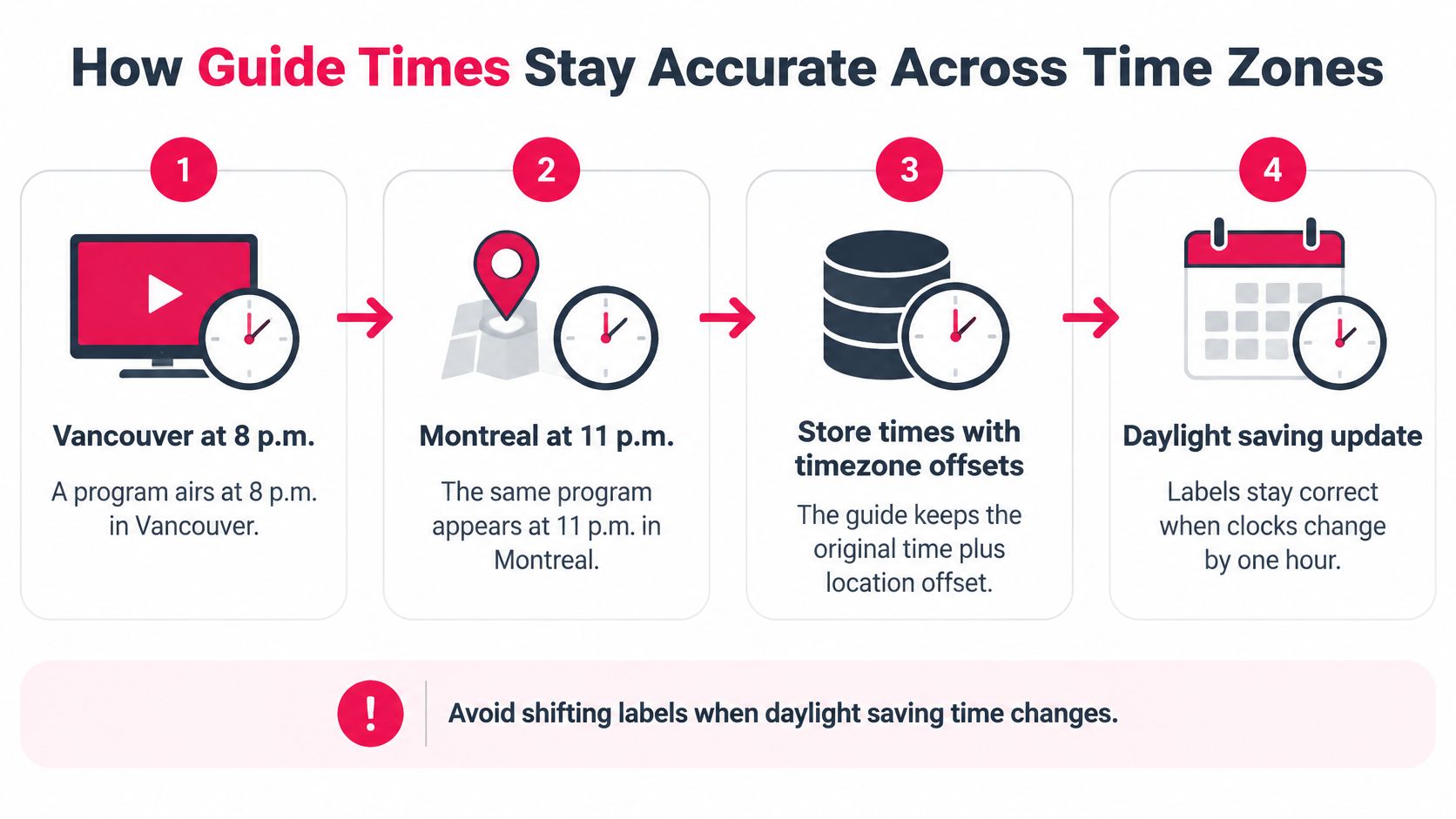
Here's how a well built guide avoids that.
- The provider sends structured schedule data. It includes channel identifiers, program start and end times, titles, and synopses, not just channel names. The ETSI EPG specification defines fields for provider identification, the number of programs, network information, versioning, and block counts.
- Times are stored in UTC or with an explicit offset. No single local clock is assumed, so the same program can be rendered correctly in every province.
- Each guide carries a revision number. Your app compares it with cached data and downloads only when the schedule has changed, which prevents stale listings.
- The app converts each time to your local time zone. It displays the converted time, so reminders and recordings follow your clock, not the broadcaster's city.
Canadian Cases That Trip People Up
Canada adds two wrinkles. Newfoundland runs half an hour off the Atlantic zone, so a Halifax start time doesn't land on the hour there. Saskatchewan doesn't observe daylight saving time, so in summer Regina and Winnipeg show different clock times even though they're neighbours on the Prairies.
| Zone case | Clock behaviour | Guide effect |
|---|---|---|
| Vancouver and Montreal | Both observe daylight saving time | An 8 p.m. Vancouver program is labelled 11 p.m. in Montreal |
| Regina and Winnipeg | Regina does not observe daylight saving time; Winnipeg does | In summer the two cities show different clock times |
| Newfoundland and Halifax | Newfoundland runs half an hour off the Atlantic zone | A program starting at 8 p.m. in Halifax is labelled 8.30 p.m. in Newfoundland |
| Any zone with a wrong device setting | Every channel shifts by the same amount | Check the device time zone and automatic time first |
Troubleshooting rule: if every channel is wrong by the same amount, check your device time zone and automatic time setting first, then restart the app.
Guide Features to Test Before You Subscribe
Don't judge IPTV with guide features by scrolling for two minutes. Run a short trial evening test in the order you'd watch, and write pass or fail beside each result.
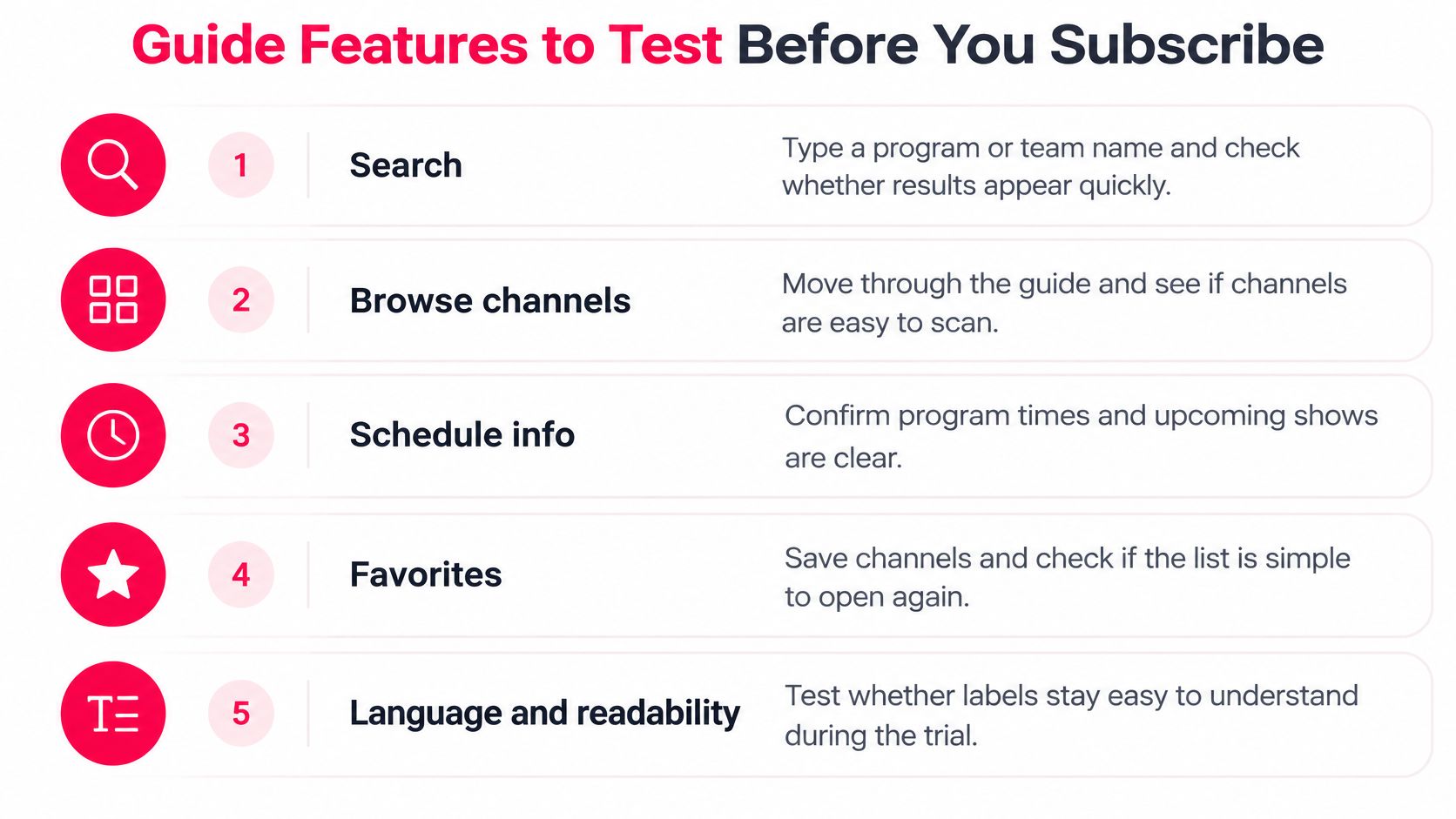
Start with search. Type a program or team name and check whether results list upcoming airings across channels, each with its channel and time. A result that shows a title but no time doesn't help you plan an evening.
Next, open the filters. Try Canadian, French, international, sports, and kids groups, and confirm each one returns the channels you'd expect. Save a few favourites, close the app completely, reopen it, and check they're still there.
Three Tests That Expose Most Guide Faults
- Find tonight's hockey game. Confirm the channel and start time in the guide match what plays when you tune in at that time.
- Locate the French news. Check that its language tag is correct and that it appears under the French filter, not only in the full list.
- Leave and return. Tune to a channel, exit the app, reopen it, and confirm you land on the same channel with the same number.
Add a clock check. Compare the live label against a program whose start time you know, such as an evening newscast. If the label flips early or late, repeat the check on a second device, such as a phone beside your Smart TV, to see whether the gap follows the account or only one screen.
Watch for one common assumption. A guide listing a sports channel doesn't prove that a particular league or event is covered, so check the specific networks you watch during the trial. Look for the actual game in the grid, with teams and a start time, rather than a channel logo alone.
Test reminders and recordings only on the device you own, since support varies by model and player. Set a reminder for a program starting in twenty minutes and see whether it appears. Record each outcome beside the field it checks, so your trial ends with a written record instead of an impression.
Why a Good Guide Still Buffers and How to Diagnose It
A polished guide can't fix a struggling stream, because they're separate systems. The guide retrieves schedule metadata, while playback depends on your connection, device, and delivery path. The ITU-T G.1021 buffer models publication describes client audio and video buffer models and notes that playout-buffer size can be adjusted dynamically during transmission, which is why players lower bitrate to keep playing.
Household conditions vary a lot. In a CRTC fixed-wireless measurement report, 54% of tests over a 24-hour period fell below the advertised 50 Mbps threshold, and latency under heavy upstream activity reached 415 ms during peak periods. Treat those figures as a reason to test your own line, guided by IPTV internet speed requirements, not as a universal speed.
| Symptom | Likely cause | First fix |
|---|---|---|
| Freezing only in the evening | Household and neighbourhood congestion at peak hours | Compare speed tests at different times and reduce simultaneous streams |
| Wrong times across the whole lineup | Device time zone or stale guide data | Enable automatic time and restart the app |
| One channel fails, others play | Channel-specific stream problem | Try another channel and report the channel to support |
| One device fails, others work | App version or device performance | Update the app, restart the device and lower the resolution |
| Guide loads but video will not start | Stream delivery or player issue | Restart the player and test on a second device |
| Wi-Fi dropouts during viewing | Weak signal or router placement | Test a wired connection and move the router closer to the screen |
Run a speed test at the time the problem occurs, compare wired and Wi-Fi, count simultaneous streams, and note whether the guide, the video, or both are affected.
Making the Guide Easy to Use for Seniors and Multilingual Homes
More guide features don't always make a guide easier. For many households, a simpler and more predictable screen beats a dense grid packed with options nobody uses.
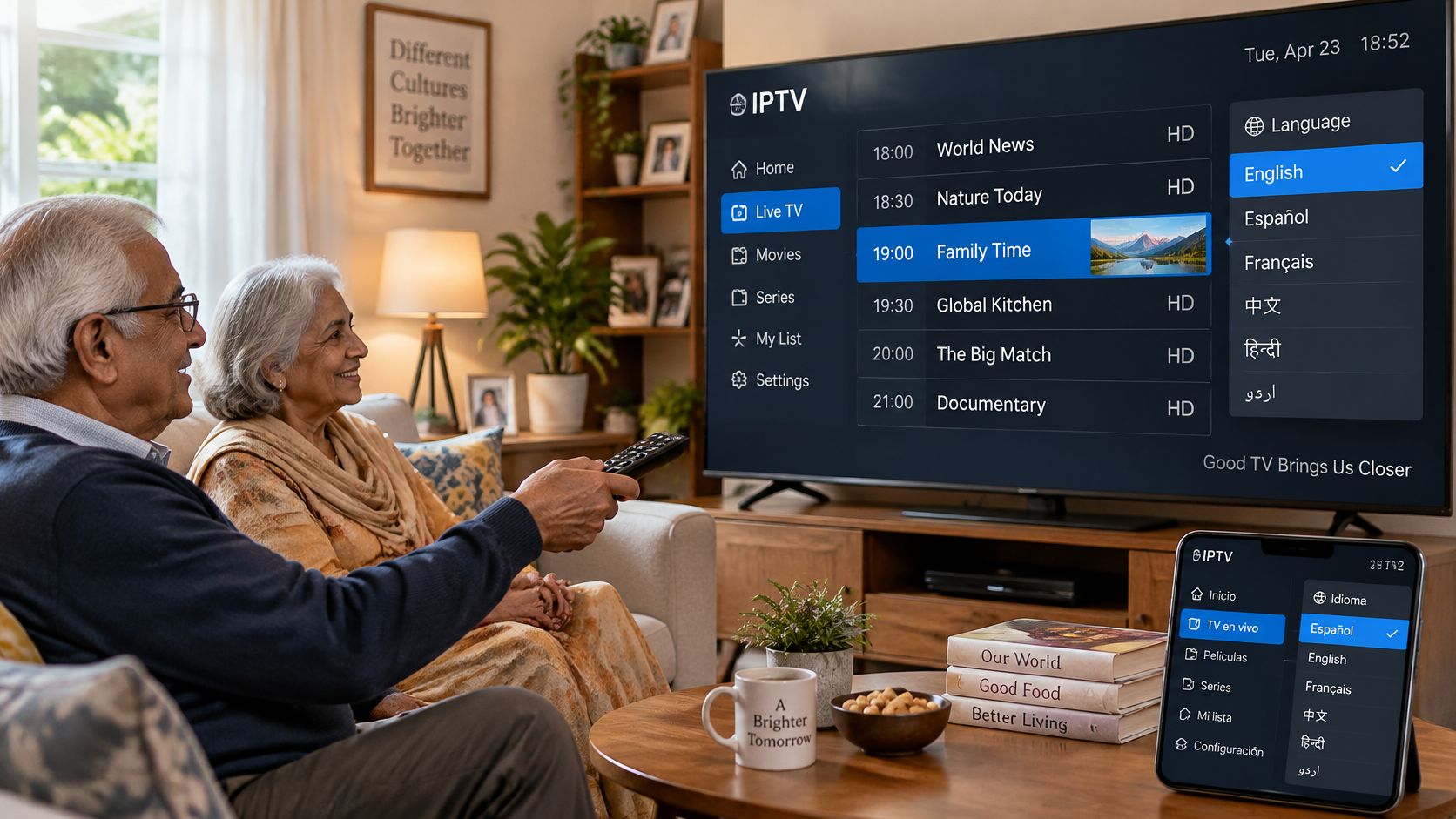
UK research points the same way. Research commissioned by Ofcom and conducted with Goldsmiths' i2 media research team tested real world internet TV tasks with participants aged 65 and over, as reported in Goldsmiths' summary of the IPTV usability design research. It found that cluttered home screens, inconsistent menus, complicated sign-ins, and poor remote-control design were major obstacles.
Two findings matter for a Canadian living room. Voice search with minimal guidance outperformed traditional EPG navigation, and logical channel numbering was accessible across participant groups. A tested TV Simple Screen overlay reduced usability barriers by almost half, especially for users with lower digital confidence. That's UK usability evidence, useful for patterns rather than Canadian viewing data.
A Household Setup That Reduces Friction
- Set favourites first. Save the five or six channels the household watches most, so nobody scrolls the full lineup nightly.
- Confirm numbers stay put. Restart the device and check that channel numbers haven't moved.
- Try voice search with your own remote. It only helps if it works with the Fire TV, Smart TV, or box you already have.
- Choose a language filter. A Quebec family may need French channel groups, while an Arabic speaking household may want international channels grouped by language.
- Check accessibility options on real channels. Confirm subtitles and audio description on the channels that carry them, not in a settings menu alone.
Then run task based tests, such as finding tonight's game, locating French news, or returning to a saved channel. Our page on IPTV for Canadian seniors needing easy navigation covers this setup in more depth.
A large channel list isn't a good viewing experience on its own. The test is whether the least confident person in the home can find a program unaided.
Finally, settle the sign-in. Decide who manages the login, where the password is kept, and whether it works across the screens in the home. A guide that everyone can reach beats one that only the person who installed it can open.
Frequently Asked Questions About IPTV Guides
How far ahead does an IPTV guide show schedules?
The depth depends on the schedule data we supply to the player, so check during a trial how far a sports or news channel lists ahead. Confirm each program shows an end time, not only a start time.
Why does a channel show no information in the guide?
That channel is missing title, synopsis, or timing metadata, which is a guide fault rather than a playback fault. Report the channel name and the time you checked, so the gap can be traced.
Does a guide show that a channel is licensed for the content it carries?
No. A guide lists what's scheduled and says nothing about rights. The programs themselves are the only evidence you can test, so tune in and verify what plays.
Can the guide work on a Fire TV stick and a Smart TV in the same home?
Check the device list and the app or player on each screen before subscribing. Then run the three guide tests on each device, since results can differ between screens.
Confirm the Guide Works in Your Home Before You Pay
Make the decision in order. First, measure your internet speed at your usual viewing time, with devices connected as you'll use them. Second, confirm your Smart TV, Firestick, phone, or other screen is supported and its player handles the guide.
Our setup has five steps. You select an IPTV subscription plan, receive login credentials, install an IPTV player app, enter the details, then start streaming. Once you're in, run the three guide tests and one evening peak check before judging the service.
Ask us in writing about trial terms, the refund policy, and support hours before committing. If you want the wider comparison first, read our guide on choosing a TV provider in Canada. Our site shows a Free Trial offer, so your next step is to request the trial or compare the available IPTV plans, then test the guide in your own home.
ROVE Canada brings Canadian and international live channels, sports, movies, and on-demand entertainment together with a program guide you can test before you commit. Run the three guide tests on your own screens during a trial, check the times against your clock, and see whether everyone in the home can find a program unaided. Visit Rove IPTV Canada to explore subscription options and request your trial.

No Responses